If you own a Google Pixel, your device is likely a hub of cutting-edge innovation. With the recent rollouts of Android 17 QPR2 and the November 2026 Pixel Drop, users have been treated to a suite of sophisticated upgrades: enhanced Pixel Search capabilities, customizable iconography, seamless Transit Mode for commuters, and the expanded integration of Gemini Intelligence. However, amidst the excitement of these high-profile software updates, one of the most practical, reliable, and profoundly underrated features—Quick Tap—often goes unnoticed.
Quick Tap is not a new invention, yet it remains a "hidden" superpower that transforms the physical architecture of your phone into a tactile interface. By simply double-tapping the rear glass of your device, you can trigger a myriad of automated tasks. This feature exemplifies the "one-handed convenience" philosophy that Google has championed, allowing users to bypass menus and navigation bars entirely.
The Evolution of Pixel Gestures: A Chronology of Convenience
To understand why Quick Tap is such a significant addition to the Pixel ecosystem, one must look at how Google has refined the physical-digital interface over the years.
- The Early Days (2020): Quick Tap was first introduced as a major highlight in the Android 11 beta and later solidified with the launch of the Pixel 4a (5G) and Pixel 5. It was initially marketed as a "Back Tap" accessibility feature, designed to help users with physical limitations interact with their devices more efficiently.
- Expansion and Refinement (2021–2023): As the Pixel 6 and 7 series were released, Google expanded the capabilities of the sensor array. The feature graduated from a niche accessibility tool to a mainstream productivity shortcut, allowing users to trigger Google Assistant, take screenshots, or control media playback.
- The Modern Era (2024–2026): With the release of the Pixel 9 and 11 series, including the sophisticated Pro Fold models, the sensor logic has been optimized for various form factors. The software now recognizes inputs whether the device is folded or flat, showcasing the robustness of the underlying machine learning algorithms that distinguish between a deliberate "tap" and the accidental jostling of a phone in a pocket.
How to Harness the Power of Quick Tap
If you have been overlooking this feature, enabling it is straightforward. It is available on every Pixel device from the 4a (5G) forward.
Enabling the Feature
- Navigate to your device’s Settings menu.
- Select System, followed by Gestures.
- Tap on Quick Tap to start actions.
Once enabled, you are presented with a menu of pre-configured options. The beauty of this feature lies in its specificity. You can assign the double-tap to toggle your flashlight—a lifesaver when navigating a dark room—or set it to take a screenshot, which is significantly more ergonomic than the traditional two-button "power + volume down" squeeze.
Customizing for Your Lifestyle
The utility of Quick Tap is limited only by your workflow. For the power user, assigning the "Open App" function is the ultimate efficiency hack. If you use your phone for mobile payments, set it to launch Google Wallet. If you are a social media enthusiast, map it to launch your camera or a specific creative app.
It is important to note the "Require stronger taps" setting. When enabled, this feature acts as a guardrail against "ghost taps"—those frustrating moments where your phone accidentally triggers an action while you are setting it down on a table or sliding it into a tight pocket. For users with heavy-duty, ruggedized cases, this setting may need to be toggled off to ensure the sensitivity is high enough to register your input through the protective layer.
The Technical Implications: Sensors and Software Integration
The "magic" behind Quick Tap is not actually magic—it is a sophisticated use of the device’s built-in accelerometer and gyroscope. When you tap the back of your phone, the hardware registers a specific vibration pattern. The software then processes this signal through a machine learning model that differentiates between the physical impact of a tap and the natural motion of walking or moving the phone.
Addressing the "Case" Dilemma
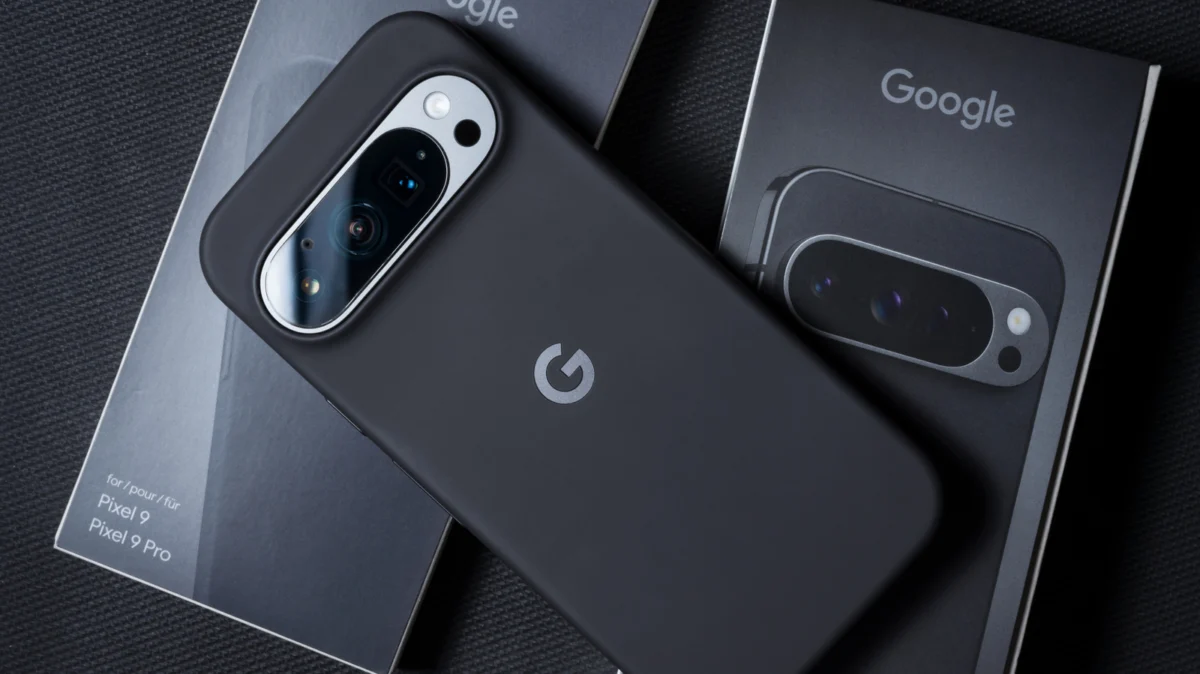
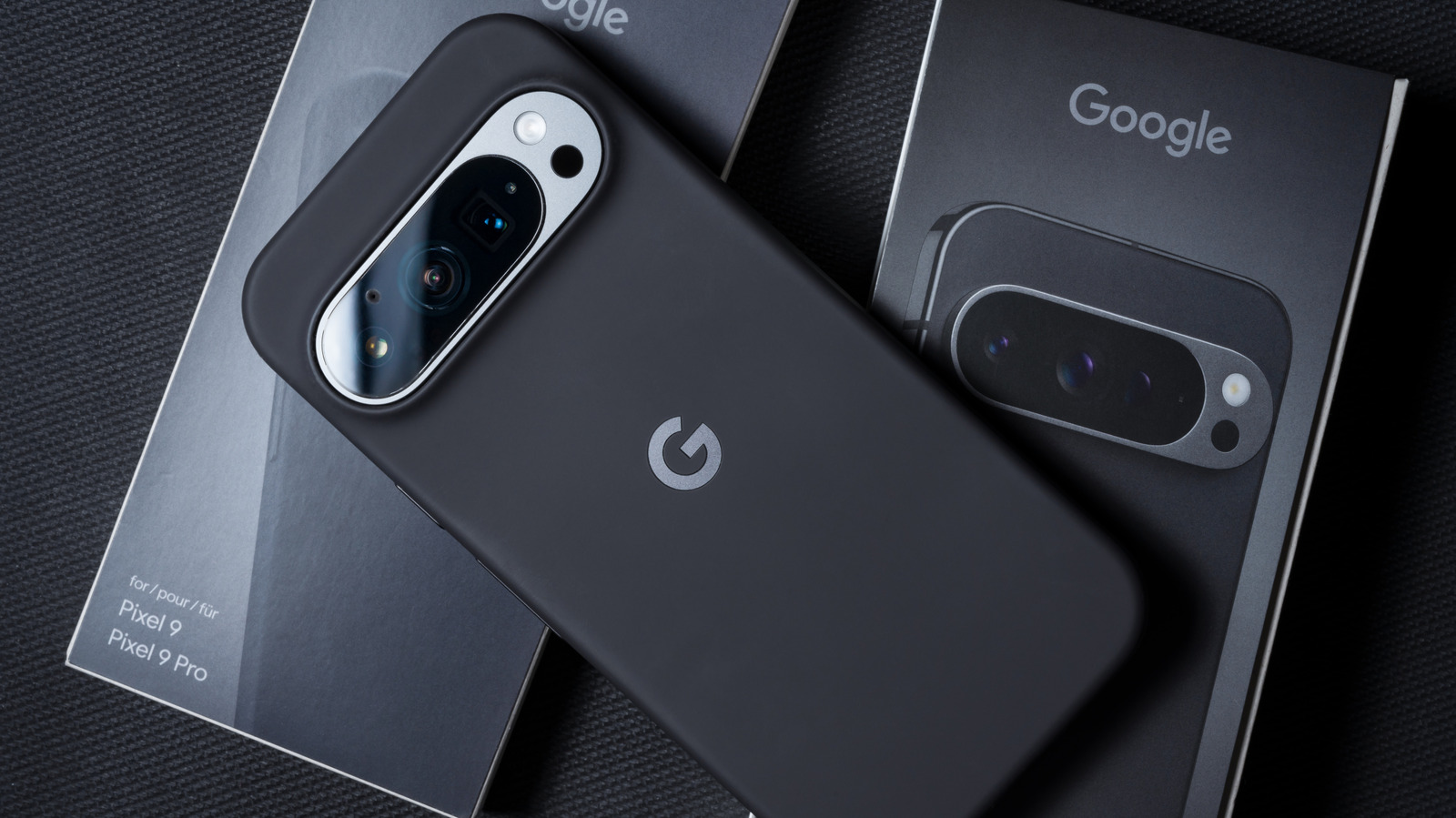
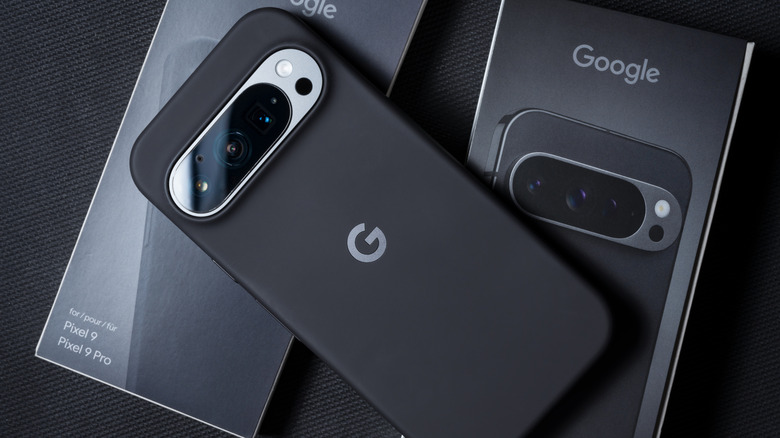
One of the most common user complaints regarding Quick Tap involves the use of protective cases. A common misconception is that the phone is using a touch-sensitive rear panel. In reality, the phone is measuring vibration and acceleration.
- Thin Cases: Silicone or polycarbonate shells usually allow the vibration to travel clearly to the internal sensors.
- Rugged/Thick Cases: These act as a shock absorber, effectively muting the impact. If you use a heavy-duty case, try tapping closer to the center of the phone, directly over the battery/logic board area, rather than the edges.
- Magnetic Accessories: MagSafe-style rings or wallets can interfere with the vibration frequency. If you notice the feature is unresponsive, you may need to recalibrate your tapping force or find a "sweet spot" near the camera bump.
Beyond the Basics: Advanced Automation
While the native settings provided by Google are sufficient for most, the community of Android power users has developed methods to extend the functionality of Quick Tap even further.
The "Tap, Tap" Alternative
For those who feel one action is simply not enough, there are open-source projects like "Tap, Tap" (available via GitHub and XDA Developers). This third-party application acts as a bridge, allowing for both double-tap and triple-tap functionality. With this, you could:
- Double-Tap: Toggle the flashlight.
- Triple-Tap: Open your smart home dashboard.
Synergy with System Gestures
It is crucial to remember that Quick Tap is just one pillar of the Pixel’s "Gesture Architecture." To achieve peak efficiency, you should pair it with other native shortcuts:
- Power Button: Double-press for Camera, or long-press for Gemini.
- Flip to Shhh: A gesture that ensures peace and quiet by placing the phone face-down.
- Lift to Check Phone: Providing at-a-glance information without the need for biometric unlocking.
By combining these, you effectively turn your phone into a device that responds to physical presence rather than just menu-driven interaction.
Implications for Future User Experience
As smartphones move toward a "buttonless" future, the reliance on gestures and sensors like those powering Quick Tap will only grow. The industry is currently witnessing a shift where the phone is no longer just a screen, but a tactile, physical object that understands how it is being held and used.
Google’s decision to keep Quick Tap in the system settings—rather than removing it as a "legacy" feature—suggests that they view physical interaction as a key part of the Android experience. In a world dominated by voice assistants and AI, the ability to interact with your device physically, without even looking at the screen, is a refreshing return to intuitive design.
Conclusion: Why You Should Start Tapping Today
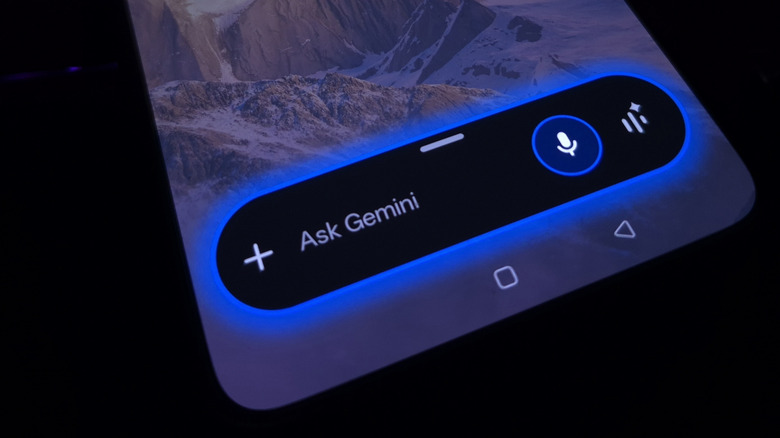
If you haven’t yet experimented with Quick Tap, you are ignoring a piece of hardware capability that costs you nothing and saves you seconds every single day. Whether it’s quickly summoning Gemini, firing up your camera before a fleeting moment vanishes, or simply managing your media while your hands are full, the feature offers a layer of control that makes the Pixel feel like an extension of your own hand.
The next time you find yourself digging through the app drawer to toggle your flashlight or fumbling with buttons to grab a screenshot, remember: the answer is on the back of your device. Go into your settings, spend five minutes configuring your preference, and discover why this "underrated" feature is, in fact, one of the most useful tools in the modern smartphone toolkit.
In an era of increasingly complex interfaces, sometimes the most advanced technology is the simplest: a tap, a response, and the immediate gratification of a task completed.