

For users transitioning from the macOS ecosystem to Windows, the concept of "force quitting" is a familiar lifeline. On a Mac, the dedicated "Force Quit" menu is a staple of troubleshooting. Windows, however, handles process management with a different philosophy. While the operating system is robust, even the most optimized environments occasionally encounter unresponsive software. When an application freezes, hangs, or stops responding to standard input, knowing how to terminate it effectively—without compromising system stability—is an essential skill for any power user.
The Mechanics of Application Management
To understand why apps get stuck, one must first understand how Windows communicates with software. When you click the X in the corner of a window, you are sending a "WM_CLOSE" message to the application. This is a polite request: the operating system is essentially asking the app to wrap up its current operations, save data, and exit gracefully.
Most applications are well-behaved, but some—particularly those dealing with heavy data, network streams, or poorly optimized code—can enter a state of deadlock. In this state, the application is no longer processing the operating system’s messages. Because the app is "not responding," it can no longer hear the request to close, leaving the user with a frozen window that persists on the screen.
The Gentle Approach: Standard Termination
Before resorting to "forceful" measures, it is always professional practice to attempt a standard close.
- The "X" Button: The primary interface for closing any window.
- Alt + F4: The universal keyboard shortcut for closing the active window. This is highly effective but requires caution; if you accidentally click on the desktop or a background folder, Alt + F4 may trigger a shutdown or restart dialogue for the entire system.
- System Tray Management: Many modern apps (Slack, Discord, Spotify) do not actually close when you click the X. Instead, they minimize to the system tray (the small arrow area next to your clock). To fully exit these, you must right-click their icon in the tray and select "Quit" or "Exit."
The Task Manager: The Professional’s Tool
When an application ignores all polite requests, the Windows Task Manager becomes the primary instrument for intervention. It is the central nervous system for all active processes on your machine.

Accessing the Control Center
There are three primary ways to summon the Task Manager:
- The Keyboard Shortcut: Pressing Ctrl + Shift + Esc is the fastest, most direct method to open the utility.
- The Right-Click Menu: Right-clicking an empty space on the Taskbar and selecting "Task Manager."
- The Command Prompt: Pressing Win + R, typing
taskmgr, and hitting Enter.
Navigating Processes
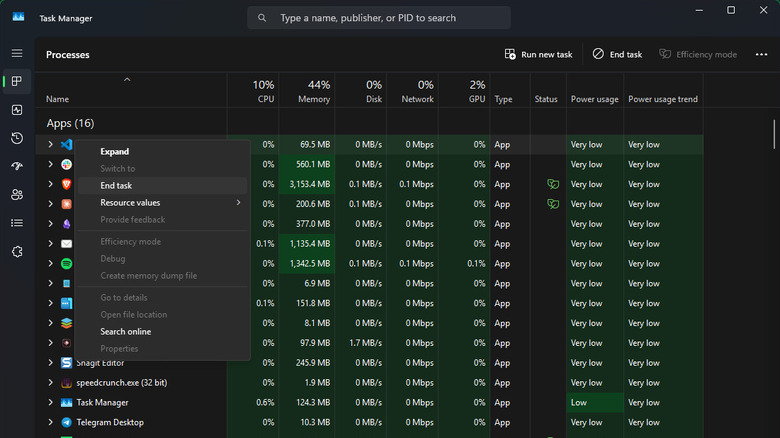
Once open, the "Processes" tab provides a granular view of your system’s workload. For users attempting to resolve a frozen application:
- Sort by Status: If you click the "Status" column header, you can instantly group "Not Responding" applications at the top of the list.
- Resource Management: If your computer is sluggish, check the "CPU," "Memory," and "Disk" columns. An application that is frozen often shows a spike in one of these categories, indicating a resource loop.
- Ending the Task: Clicking "End Task" sends a signal to the process to terminate immediately. Unlike a normal exit, the application is not given the chance to save unsaved progress.
The Sensitivity of Windows Explorer
A critical note for any user: the "Windows Explorer" process is unique. It governs the Taskbar, the Start Menu, and the File Explorer windows themselves. If your Taskbar disappears or your desktop icons vanish, you haven’t crashed the computer; you’ve likely closed the Explorer process. To fix this, simply go to the "File" menu in Task Manager, select "Run new task," and type explorer.exe. This will reload the Windows graphical interface.
Advanced Strategies for Stubborn Processes
Occasionally, a high-level application will resist even the Task Manager’s "End Task" command. When an application has become deeply entrenched in the kernel or has multiple child processes running simultaneously, you must escalate your response.
Enabling "End Task" on the Taskbar
A recent quality-of-life update in Windows 11 allows for a more direct approach. By navigating to Settings > System > For developers, you can toggle on "End Task." Once enabled, you can simply right-click any app icon on your Taskbar and select "End Task" directly from the context menu, bypassing the need to open the full Task Manager interface.

The Details Tab and Process Trees
For applications that spawn multiple background services, the standard "End Task" might only kill the main window while leaving the background engine running. In these cases:
- Go to the Details tab in Task Manager.
- Right-click the culprit process.
- Select End Process Tree. This command kills the main process and every sub-process associated with it, ensuring a total shutdown.
Command Line Intervention
For users who prefer a programmatic approach, the Command Prompt (CMD) or PowerShell offers the taskkill command. By running taskkill /f /im [process_name].exe, you can terminate a specific application by its executable name. This is particularly useful for automated scripts or situations where the graphical user interface (GUI) has completely locked up.
External Solutions: Third-Party Power
While Windows provides the tools, third-party developers have created utilities to make this process even more seamless.
- SuperF4: This utility is highly recommended for power users. It redefines the behavior of Ctrl + Alt + F4 to instantly terminate any process without the system waiting for a response. It also introduces a "kill" cursor that allows you to click on any window and instantly destroy it, which is perfect for full-screen applications that refuse to minimize.
Implications and Best Practices
The ability to force quit is a powerful tool, but it should not be treated as a daily routine. Frequent application freezing often points to underlying systemic issues.
The Role of System Updates
If a specific application freezes regularly, it is often a sign of a version mismatch. Check for updates within the app, or verify that your Windows OS is fully updated. Developers often release patches specifically designed to fix memory leaks that lead to these "Not Responding" states.
The "Reboot" Philosophy
It is a common misconception that leaving a computer on for weeks at a time is efficient. In reality, a reboot clears the RAM, terminates lingering background processes that may be causing conflicts, and refreshes the file system. A simple restart once every few days is the most effective way to prevent the very freezes that necessitate a force quit.
When to Seek Deeper Help
If you find yourself force-quitting applications multiple times a day, the problem may lie outside the apps themselves. Consider the following:
- Hardware Failure: A failing hard drive or faulty RAM can cause software to hang while trying to read/write data. Running a
chkdskor a memory diagnostic test is advisable. - Driver Conflicts: Outdated GPU drivers are a frequent culprit for full-screen game freezes.
- Malware: Sometimes, a frozen app is actually a symptom of malicious software consuming system resources in the background. Ensure your Windows Defender or security suite is up to date.
Summary
While the terminology differs from macOS, Windows provides a comprehensive suite of tools to handle unresponsive software. From the standard Alt + F4 to the high-level End Process Tree in the Task Manager, users have a tiered approach to reclaiming control of their system. By understanding the hierarchy of these commands and maintaining a healthy system through regular updates and reboots, users can ensure their computing experience remains smooth, productive, and free from the frustration of frozen windows. Remember: when in doubt, the Task Manager is your best friend—but always save your work frequently to ensure that a "forceful" exit is never a catastrophic one.