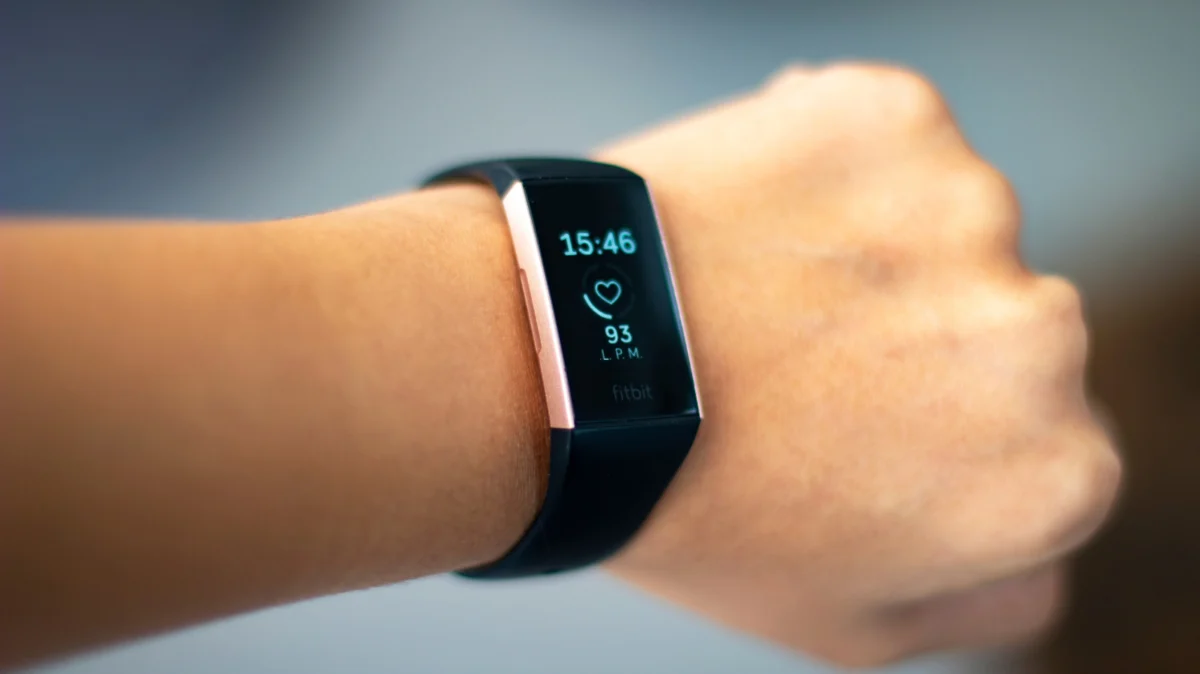
Whether you are a long-time fitness enthusiast or a casual user, your Fitbit device is a vital companion for monitoring health metrics, sleep patterns, and daily activity. However, even the most reliable technology can occasionally encounter performance hiccups. While a simple restart is the first line of defense for minor glitches, there are moments when a more drastic measure is required: the factory reset.
Understanding when and how to perform a factory reset is an essential skill for any Fitbit owner. This guide provides an exhaustive look at the "why," "when," and "how" of resetting your device, ensuring you can maintain your hardware’s longevity or prepare it for a new owner with confidence.
The Core Distinction: Restarting vs. Resetting
Before diving into the mechanics of a factory reset, it is critical to distinguish between a "restart" and a "factory reset." These terms are often used interchangeably by users, but they function in fundamentally different ways.
The Restart (Soft Reset)
Think of a restart as the digital equivalent of taking a deep breath. It clears the temporary cache and stops background processes that may be causing a minor freeze or sync failure. If your Fitbit refuses to sync with the Google Health app, is failing to record heart rate data, or is showing a slightly sluggish interface, a restart is your first step. Depending on your model, this typically involves holding down one or more physical buttons until the device powers off and the logo reappears. It is a non-destructive process; your data and settings remain untouched.
The Factory Reset (Hard Reset)
A factory reset is the "nuclear option." It wipes the device’s internal memory, stripping away all user-defined settings, unsynced data, and customized preferences. When you perform a factory reset, the device is reverted to its "out-of-the-box" state. This process is irreversible and should only be initiated when all other troubleshooting steps have failed or when you are permanently parting ways with the hardware.
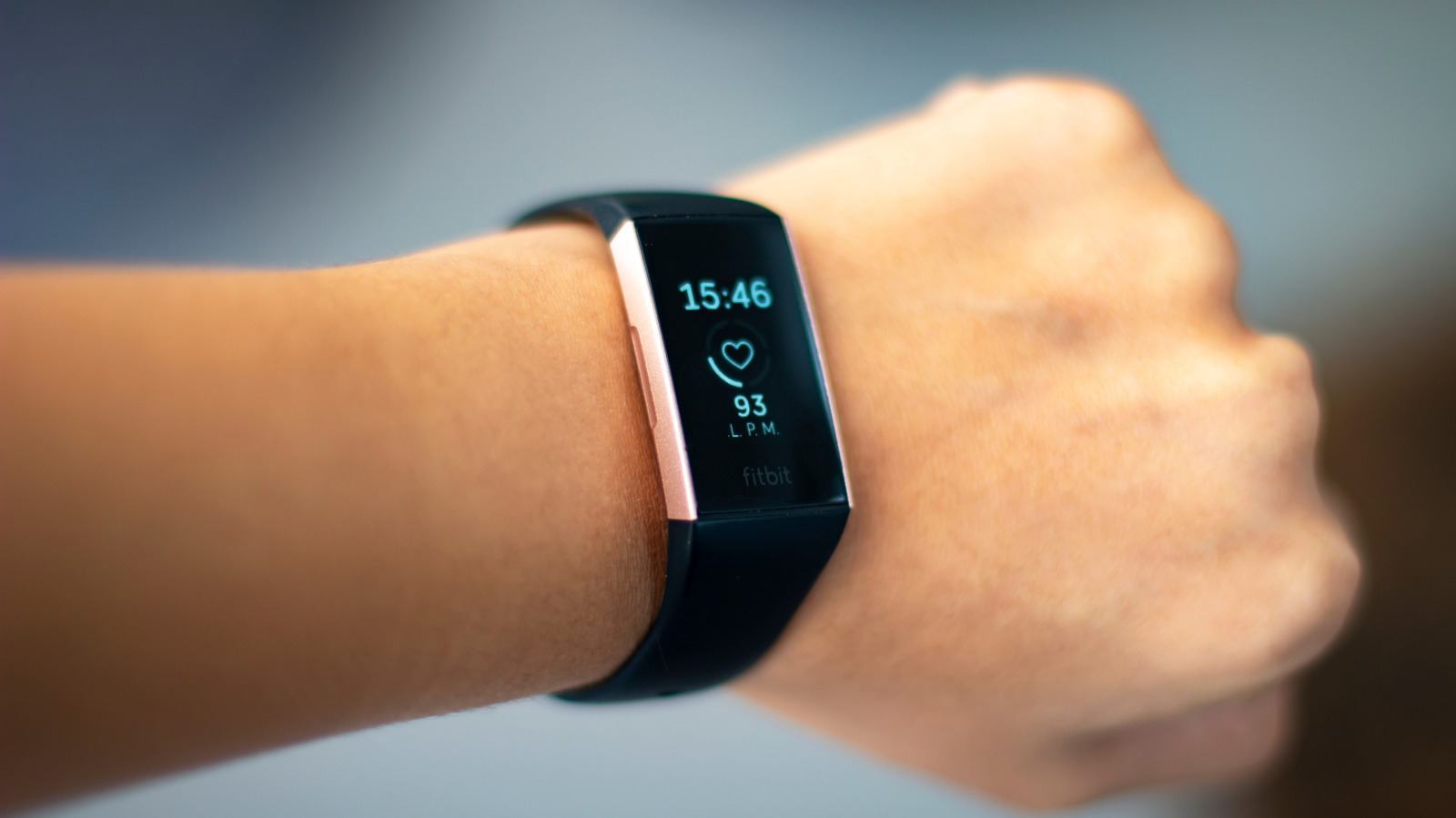
When and Why to Factory Reset
There are three primary scenarios where a factory reset is not just recommended, but necessary:
1. Preparing for Resale or Gifting
Privacy is paramount. If you are selling, donating, or gifting your Fitbit to another person, you must perform a factory reset. Simply unpairing the device is often not enough to clear locally stored data. By wiping the device, you ensure that the next user starts with a clean slate and that your personal health history is completely removed from the hardware.
2. Resolving Persistent Technical Failures
Occasionally, a Fitbit may enter a "boot loop," where it becomes frozen on a splash screen, or it may suffer from an unresponsive touchscreen that ignores all inputs. If you have attempted standard restarts and updated the firmware through the Google Health app, but the device remains unusable, a factory reset is the final attempt to restore functionality.
3. Secure Disposal or Recycling
If a device has reached the end of its life cycle and you are handing it over to a recycling facility, performing a factory reset is a best practice for data hygiene. While most e-waste facilities follow strict data destruction protocols, taking the initiative to wipe your own device provides peace of mind.
Chronology: The Evolution of the Fitbit Reset Process
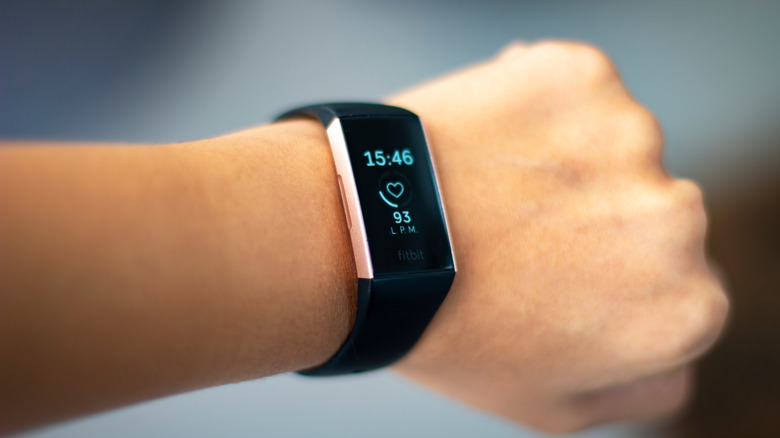
Fitbit’s hardware ecosystem has changed drastically over the years, moving from simple, button-heavy trackers to sophisticated, screen-centric smartwatches. Consequently, the methods for resetting have evolved.
The Era of Physical Interaction
In the early days of Fitbit—typified by the Fitbit Flex—devices lacked screens and advanced touch interfaces. Resetting these devices required mechanical intervention. Users often had to plug the device into a charger and utilize a physical pinhole or a specific sequence of button presses to trigger a reset. These methods were tactile and manual, requiring patience and the right tools, such as a paperclip.
The Rise of the Graphical User Interface (GUI)
As trackers gained OLED and AMOLED screens, the reset process migrated into the software. Modern devices, such as the Fitbit Edge, allow users to navigate through "Settings" and "About" menus to find the "Clear User Data" option. This shift moved the user experience away from hardware-level manipulation toward a more intuitive, menu-driven interface.
Modern Hybridization
The most recent devices, such as the Fitbit Air, have introduced a hybrid approach. These devices may lack a traditional menu-based reset, opting instead for a specific sequence of button holds while docked. This evolution reflects a broader design philosophy at Google/Fitbit to minimize accidental resets while keeping the feature accessible to those who need it.
Technical Implications: Data Retention and Security
A common concern among users is the loss of health data. It is vital to understand exactly what happens to your information during a reset.
Data in the Cloud vs. Local Storage
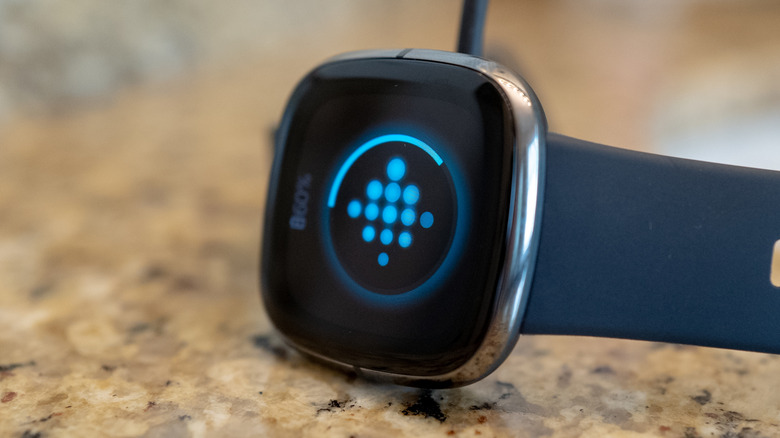
When you sync your Fitbit, your data is pushed to the Google Health ecosystem. A factory reset only removes data stored locally on the physical tracker. Any information that has successfully synced to the cloud remains intact. You will not lose your historical health trends, historical weight entries, or long-term activity logs.
What You Will Lose
Once the reset is complete, the following will be erased from the device:
- Active Alarms: Any scheduled wake-up or reminder alarms.
- Custom Notifications: Specific app alerts or vibration settings.
- Unsynced Activity: Any workouts performed since the last time the device successfully synced to the app.
- Device Preferences: Brightness, screen timeout settings, and watch face customizations.
Step-by-Step: Executing the Reset
For Modern Screen-Based Devices
- Navigate: Swipe through your device’s menu to find the Settings icon.
- Locate: Scroll down to the About or Device Info section.
- Initiate: Select Clear User Data or Factory Reset.
- Confirm: Follow the on-screen prompts. You will often be asked to hold the screen or a button for several seconds.
- Verification: The device will vibrate and the Fitbit logo will appear. Once it boots back up, it will behave as if it were brand new.
For Screenless Trackers (e.g., Fitbit Flex)
- Dock: Connect the device to its charging cable.
- Power: Plug the USB end into a computer.
- Interact: Locate the small reset button (often in a hole on the charger or the back of the sensor).
- Action: Use a paperclip to press the button for approximately 3–5 seconds.
- Confirm: Wait for the indicator lights to blink, signaling that the reset is complete.
For Modern Screenless Models (e.g., Fitbit Air)
- Preparation: Unpair the device in the app by navigating to System > Disconnect & reset device.
- Dock: Place the device on the charger.
- Action: Hold the back button for 10 seconds.
- Status: Wait for the status light to flash white. This signals that the device has purged its local data and is ready to be re-paired.
Troubleshooting Post-Reset
If you find that your device is not connecting to your smartphone after a factory reset, perform a "clean sweep" of your Bluetooth settings:
- Go to your phone’s Bluetooth Settings.
- Locate the Fitbit in the list of "Known Devices."
- Tap the "i" icon or the gear icon and select Forget This Device.
- Open the Google Health app and attempt the pairing process as if adding a brand-new device.
Conclusion: Use with Care
A factory reset is a powerful tool in your tech toolkit. While it is the definitive solution for major software issues and a necessary step for privacy, it should not be treated as a casual maintenance task. By understanding the distinction between a simple restart and a total wipe, you ensure that your health data remains safe while keeping your device performing at its peak.
Whether you are troubleshooting a stubborn boot loop or passing your device on to a new user, following these structured steps will ensure a smooth, worry-free process. Remember: patience is key. After a reset, your device may take a few moments to recalibrate its sensors and re-establish a stable connection to your smartphone. Once finished, you will have a device that feels as responsive and reliable as the day you first unboxed it.