
For the average computer user, the back panel of a desktop motherboard or the side of a laptop can often resemble a cryptic puzzle. Amidst the sea of black, blue, and red plastic inserts, the occasional appearance of a yellow USB-A port stands out as an enigma. While industry standards govern the physical dimensions of USB connectors, the color-coding schemes applied to these ports are often left to the whims of hardware manufacturers. Understanding these colors is more than just a matter of aesthetics—it is a vital skill for optimizing peripheral performance and power management.
The Core Function: Decoding the Yellow Port
The most common association for a yellow USB-A port is the "Always On" feature. In the context of computing, an "Always On" port is designed to provide electrical current to connected peripherals even when the host computer is powered down, in sleep mode, or hibernating. This functionality is particularly useful for users who need to charge smartphones, wearables, or wireless headsets overnight without keeping their main workstation running.
However, it is crucial to understand that there is no universal industry mandate for this color. Unlike the USB Type-C connector, which has strict electrical and signaling specifications governed by the USB Implementers Forum (USB-IF), the internal plastic color of a USB-A port is largely a proprietary design choice. While many manufacturers, such as Lenovo in their legacy hardware, utilized yellow to denote high-power, constant-current delivery, this is a convention rather than a law.
A History of Color-Coded Connectivity
To understand why these colors exist, one must look at the evolution of the Universal Serial Bus (USB) standard. Since its inception in the mid-1990s, the USB interface has undergone several generational leaps, each requiring a visual method for users to distinguish between varying data transfer speeds.
The USB 1.0 and 2.0 Era
In the early days of USB 1.1 and 2.0, the color black was the standard. It signaled the arrival of a revolutionary plug-and-play technology, though it was limited to speeds of 12 Mbps and 480 Mbps, respectively. Because these speeds were relatively uniform across the industry, there was little need for complex color coding.

The USB 3.0 Inflection Point
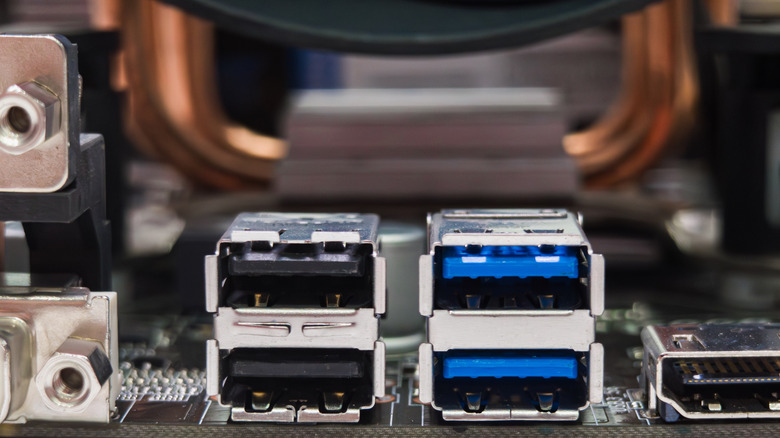
The transition to USB 3.0 (often referred to as SuperSpeed) marked the first major divergence in color-coding. The USB-IF recommended the use of a specific shade of blue to signify the jump to 5 Gbps. This was a critical UX (User Experience) decision; plugging a high-bandwidth device like an external hard drive into a slower USB 2.0 port would result in significant performance bottlenecks. Blue became the unofficial "gold standard" for USB 3.0, and most manufacturers adopted it to prevent consumer confusion.
The Proliferation of Customization
As the USB 3.1 and 3.2 standards arrived, the speed tiers increased to 10 Gbps and 20 Gbps. Suddenly, "blue" was no longer sufficient to represent the wide range of available speeds. Manufacturers began experimenting with new colors to market their high-performance ports. Red became the de facto color for high-speed (10 Gbps+) connections, while teal and other shades began to appear on high-end gaming motherboards to denote top-tier interface performance. During this chaotic period of branding, "yellow" was frequently repurposed by OEMs to highlight special power-delivery features rather than raw data throughput.
Supporting Data: Navigating the Speed Ladder
While color is a helpful heuristic, relying on it entirely can lead to hardware underperformance. As noted by various industry stakeholders, including Corsair and component manufacturers, there is no standardized "speed chart" for these colors.
| Color | Typical Association | Data Speed (Approx.) |
|---|---|---|
| Black | USB 2.0 | 480 Mbps |
| Blue | USB 3.0 / 3.1 Gen 1 | 5 Gbps |
| Teal | USB 3.1 Gen 2 / 3.2 | 10 Gbps |
| Red | High Speed / Power Delivery | 10 – 20 Gbps |
| Yellow | Always-On / Specialized Power | Varies (2.0 to 3.0) |
The lack of standardization means that a yellow port on a five-year-old laptop may only support USB 2.0 speeds, while a yellow port on a modern workstation motherboard could technically be a USB 3.2 interface. Consumers must verify the documentation provided by the manufacturer. If a device requires high-speed data transfer—such as a 4K capture card or an NVMe-based external SSD—consulting the motherboard’s manual is the only way to guarantee that you are utilizing the correct bus speed.
The Shift Toward Symbolic Design
In recent years, the industry has begun moving away from color-coding entirely. This shift is driven by the complexity of modern hardware; when a single port can support power delivery, data transfer, and even display output (as seen with USB-C), a single color is no longer an adequate descriptor.

Instead, manufacturers are increasingly using silkscreened icons on the chassis.
- The Battery Symbol: Denotes a port capable of high-amperage charging or "Always On" functionality.
- The Lightning Bolt: Often indicates a Thunderbolt-capable port or a port with enhanced power-delivery capabilities.
- The Trident (USB Logo): Indicates a standard USB port, sometimes accompanied by a "SS" (SuperSpeed) tag or a number (e.g., "10" for 10 Gbps) to denote the specific generation of the interface.
This transition toward symbolic language is a welcome development for accessibility and clarity, reducing the "guesswork" that plagued users in the early 2010s.
Technical Implications: Configuring "Always On"
For users who find a yellow port on their machine, it is essential to note that the feature is rarely "plug-and-play" at the firmware level. Even if the port is physically wired to the power supply’s 5V rail to allow for charging, the BIOS/UEFI settings often include a toggle for this feature.
In many enterprise laptops, the "Always On" functionality is disabled by default to prevent "vampire drain"—a condition where the peripheral device slowly depletes the laptop’s battery while it is stowed in a bag. Users may need to enter the BIOS menu to enable "USB Charge in Sleep Mode" or "Charge in Battery Mode." Furthermore, some machines require specific proprietary software (like Lenovo Vantage or Dell Command Center) to manage the charging threshold, ensuring that the laptop doesn’t sacrifice too much of its own battery life to satisfy the needs of a connected smartphone.
Official Perspectives and Future Outlook
The USB Implementers Forum has consistently maintained that color coding is a suggestion for market convenience, not a technical requirement. The organization’s primary focus remains the physical and electrical integrity of the connector. As the industry migrates toward the universal adoption of USB Type-C, the need for color-coding the internal plastic insert is rapidly disappearing.
Type-C connectors are inherently more complex and require digital negotiation between the host and the peripheral to determine power and data protocols. Because the cable itself is now "smarter," the physical port no longer needs to signal its capabilities through primitive visual indicators like color.
Conclusion: The Final Verdict
The yellow USB port is a relic of a transitional era in computing—a time when hardware manufacturers needed a visual shorthand to signal a value-add feature. While it serves as a helpful indicator for "Always On" charging, it is a dangerous metric to use for gauging data speed.
If you are looking to optimize your workstation, remember these three rules:
- Don’t rely on color for speed: Always check the port label or the motherboard manual for actual data throughput specifications.
- Software matters: Always-on charging often requires a BIOS-level toggle or manufacturer-specific power management software to function correctly.
- Symbols are the future: Look for the battery icon or the lightning bolt; these are increasingly becoming the industry-standard indicators for high-performance and high-power ports.
As we move further into the era of unified USB-C connectivity, the colorful plastic inserts of the past will eventually fade away, replaced by cleaner, more descriptive labeling. Until then, treat your yellow ports with caution, verify your settings, and always keep your user manuals handy.