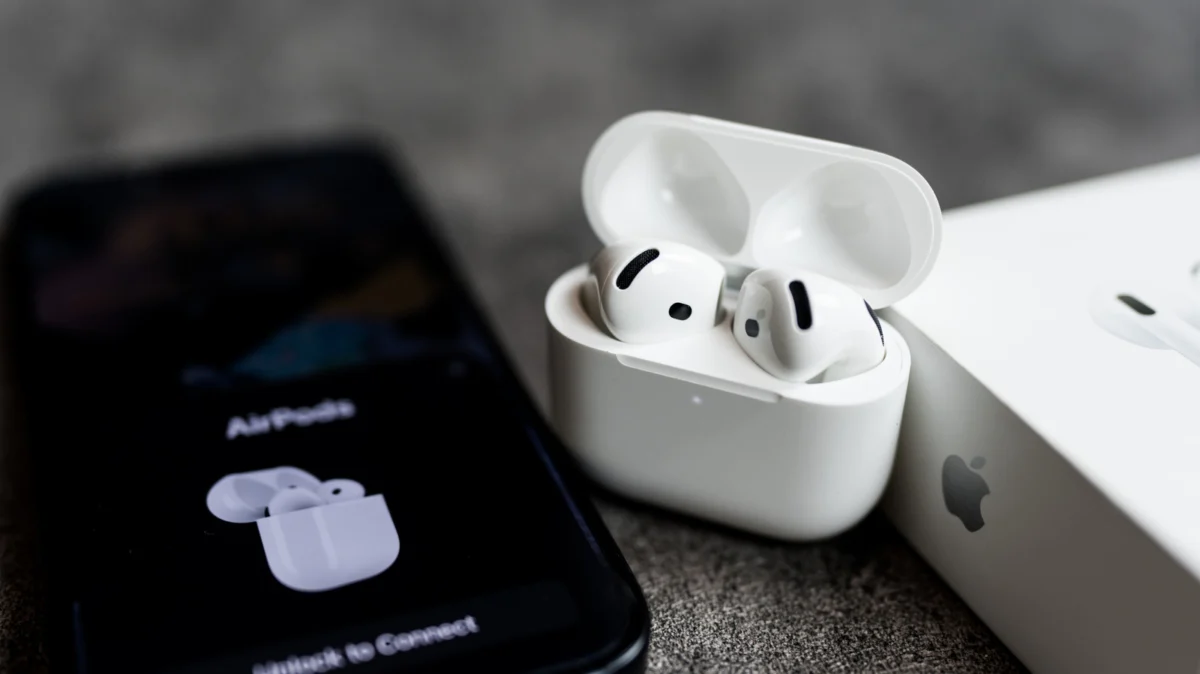
Apple’s ecosystem is renowned for its "it just works" philosophy. Features like seamless device switching, instant pairing, and deep integration with iOS have made AirPods the gold standard for wireless audio. Yet, even the most polished technology is prone to occasional hitches. When your AirPods refuse to sync with your iPhone, it can be a frustrating experience that disrupts your workflow, commute, or leisure time.
If you find yourself staring at your screen while your earbuds remain stubbornly silent, do not panic. Most connectivity issues are not the result of catastrophic hardware failure but are instead minor software conflicts or simple maintenance oversights. This guide serves as a deep dive into why these disconnects occur and, more importantly, how to resolve them systematically.
Main Facts: Understanding the Connectivity Ecosystem
At the heart of the AirPods experience is Bluetooth Low Energy (BLE) and Apple’s proprietary H1 or H2 chips. These components handle the handshake between your earbuds and your iPhone. When this connection fails, it is usually due to one of four primary factors: power delivery, signal interference, software version mismatches, or device handoff conflicts.
The Power Paradigm
The most common culprit behind a "dead" connection is the simplest: a lack of power. Because AirPods rely on the charging case to maintain their charge and facilitate the pairing state, a drained battery in either the buds or the case can render them invisible to your iPhone.
Software and Firmware Synchronization
AirPods are not static hardware; they receive periodic firmware updates that introduce bug fixes and stability improvements. If your iPhone is running the latest iOS but your AirPods are trapped on outdated firmware, communication protocols can become incompatible.
Ecosystem Handoffs
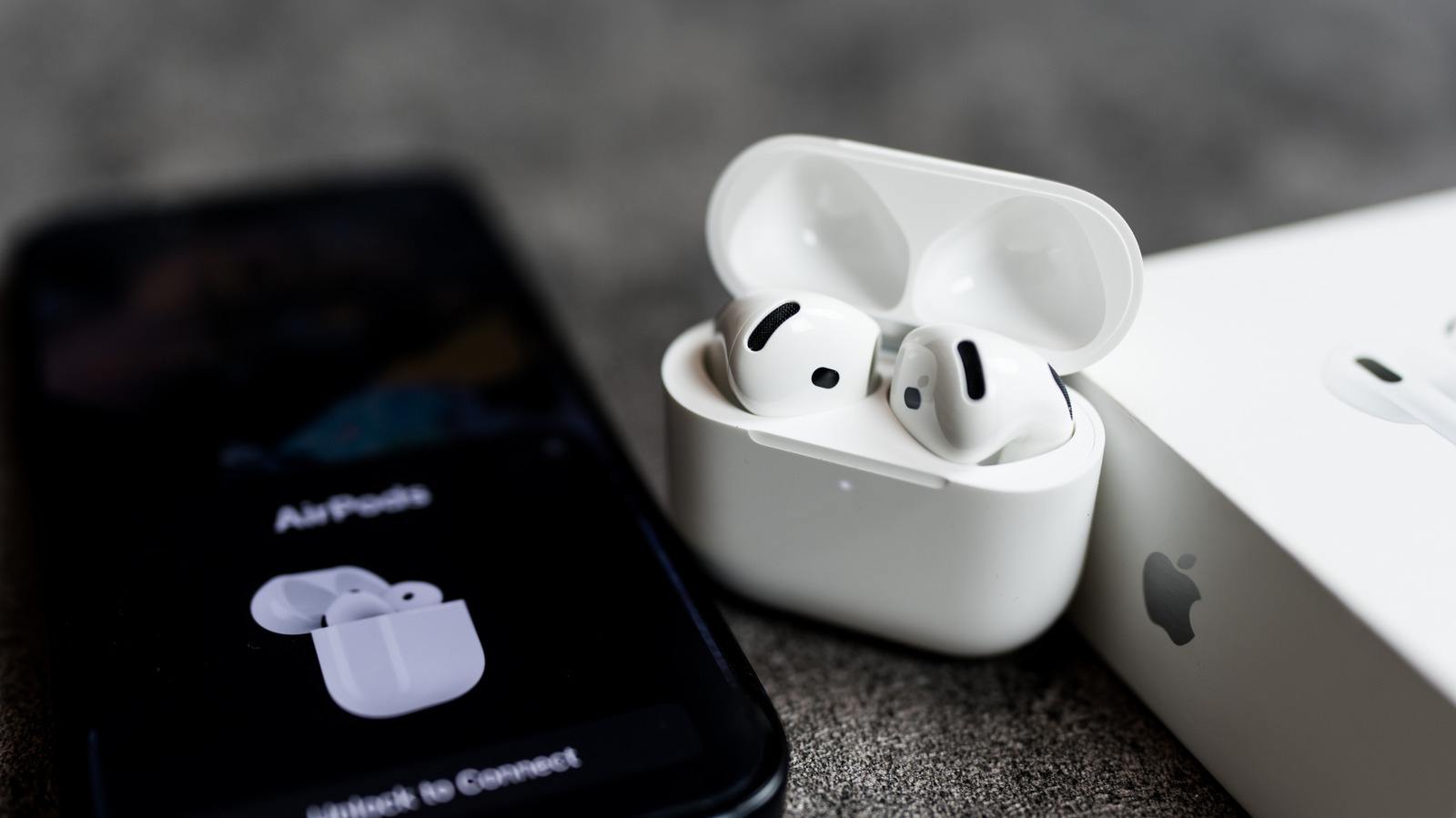
The "Automatic Switching" feature is a double-edged sword. While it allows you to transition from a movie on your iPad to a phone call on your iPhone effortlessly, it can also lead to "device hijacking." If another Apple device in your vicinity claims the audio stream, your iPhone may be pushed to the background, leading you to believe the AirPods have disconnected when they have simply shifted loyalty.
Chronology: A Step-by-Step Diagnostic Path
When troubleshooting, it is vital to follow a logical order of operations to avoid redundant work. Use this chronological checklist to isolate the problem.
1. The Immediate Inspection (Minutes 0–5)
Before digging into system settings, verify the physical state of your hardware.
- Check the Case: Ensure the earbuds are seated correctly. If they are covered in lint or earwax, the metal contact points may not be making a proper connection, preventing them from charging or entering pairing mode. Clean the contacts with a soft, lint-free cloth or a dry, soft-bristled brush.
- Power Cycle: Plug your charging case into a power source for at least 15 minutes. Even if the case has residual power, a fresh charge can reset the internal logic board of the case.
2. The Software Check (Minutes 5–10)
If the hardware is powered, look at your iPhone’s status.
- Bluetooth Refresh: Toggle Bluetooth off in the Control Center, wait ten seconds, and toggle it back on. This forces the iPhone to re-scan for nearby active peripherals.
- Airplane Mode Toggle: Turning on Airplane Mode for a few seconds can reset the radio frequency hardware on your iPhone, which often clears up "stuck" Bluetooth connections.
3. The Re-Pairing Protocol (Minutes 10–20)
If the above steps fail, you must "forget" the device and start fresh.
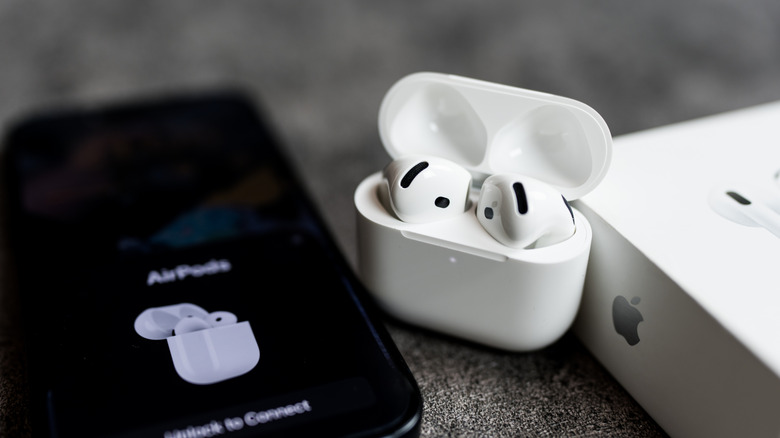
- Navigate to Settings > Bluetooth.
- Find your AirPods in the list, tap the "i" icon, and select Forget This Device.
- Place the AirPods in the case, leave the lid open, and initiate the reset process based on your specific model (detailed in the subsequent section).
Supporting Data: Resetting Specific Models
Not all AirPods are created equal, and the reset process varies significantly by generation. Understanding these specific manual overrides is essential for a clean slate.
AirPods (1st through 4th Generation)
For these models, the reset procedure is mechanical:
- Place the AirPods in the charging case and close the lid. Wait 30 seconds.
- Open the lid.
- Press and hold the setup button on the back of the case (or the front for certain newer models).
- Watch the status light: it will flash amber, then white. Once it flashes white, the AirPods are in factory-reset mode and ready to be re-paired with your iPhone.
AirPods Max
The over-ear experience requires a different approach:
- Charge your AirPods Max for a few minutes.
- Press and hold the Noise Control button and the Digital Crown simultaneously.
- Hold until the LED light flashes amber, then white. This signifies a successful factory reset.
Official Responses and Firmware Management
Apple maintains a dedicated support portal that tracks firmware versions. It is important to note that, unlike iOS, there is no manual "Update" button for AirPods. Firmware updates occur automatically when the AirPods are in their case, connected to power, and within range of your paired iPhone.
If you suspect your firmware is outdated, follow these steps:
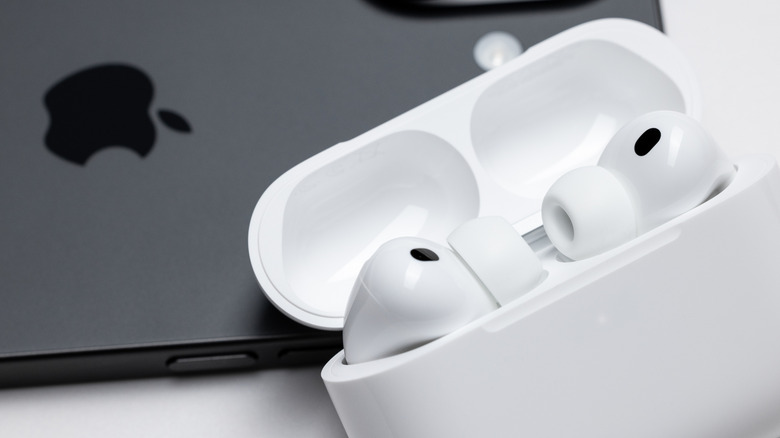
- Ensure the AirPods are inside the case and the case is charging.
- Ensure your iPhone is connected to Wi-Fi and has Bluetooth enabled.
- Leave the devices undisturbed for at least 30 minutes.
- To verify the current version: Go to Settings > Bluetooth > [Your AirPods] > Version. Compare this string of numbers against the latest release notes on Apple’s official support website.
If you find that your firmware is significantly behind and will not update, the issue may lie with the iPhone’s ability to "push" the update. In such cases, re-pairing the device while on a stable Wi-Fi connection is the most effective way to trigger the background download.
Implications: When to Seek Professional Support
While 90% of connectivity issues can be solved through the steps listed above, there are scenarios where the fault lies within the hardware itself.
Hardware Failure Symptoms
- Inconsistent Audio: If one AirPod consistently drops out despite a full charge, the internal battery or the antenna array may be failing.
- Total "Dead" Case: If the charging case fails to light up entirely—even after being connected to a known-working Lightning or USB-C cable—there is likely a failure in the charging port or the internal circuitry.
- Persistent "Non-Recognition": If you have performed a full factory reset and the iPhone still fails to recognize the AirPods while other devices (such as a MacBook) also fail to detect them, the H1/H2 chip may be defective.
Leveraging AppleCare+
If your AirPods are within the one-year limited warranty period, or if you have extended coverage through AppleCare+, you are entitled to service or replacement. Do not attempt to open the AirPods case or the earbuds themselves; they are sealed units, and tampering with them will void your warranty.
When contacting Apple Support, have your serial number ready (found under the lid of the charging case or in your iPhone’s Bluetooth settings). Apple technicians can run remote diagnostics to determine if the issue is a software glitch or a hardware failure. In many cases, Apple will offer an "Express Replacement" service, where they send you a replacement unit before you have to return the faulty one.
Final Thoughts
While the convenience of the AirPods ecosystem is meant to be seamless, the complexity of wireless communication means that occasional friction is inevitable. By maintaining your devices, keeping your firmware updated, and following the systematic reset protocols outlined here, you can resolve the vast majority of connection issues. If the problem persists, rest assured that Apple’s support infrastructure is designed to handle these edge cases, ensuring that your listening experience is restored as quickly as possible.